How to track fee dues and collect payments
See who owes what, record cash and cheque payments, send a parent an online payment link, print a receipt and remind parents of overdue fees.
What you'll do
- 1Open Fees and switch to the Fee Dues tab.
- 2Filter by class or status to find the dues you need.
- 3Record a cash or cheque payment with Pay.
- 4Create and send an online payment link with Link.
- 5Print a receipt, and remind parents of overdue dues.
Every fee a student owes is a due: an amount, a due date, what has been paid and the balance. This guide covers the daily fee desk — finding dues, recording payments taken at the office, sending parents a link to pay online, printing receipts and reminding parents whose fees are overdue.
Before you start
You need permission to manage fees — usually the accountant or school admin.
Dues must already exist. They are raised from a fee structure on the Fee Structures tab, for a whole class at once. If the Fee Dues list is empty, set up the structures first.
To send online payment links, your school's payment gateway account — Cashfree, Razorpay, PhonePe or Paytm — must be connected under Payment Gateways. Parents' payments then settle straight into the school's bank.
Step 1 — Open the Fee Dues list
Go to Fees. The screen is titled Fee Management, with four totals at the top: Total Dues, Total Paid, Balance and Active Dues. Click the Fee Dues tab.
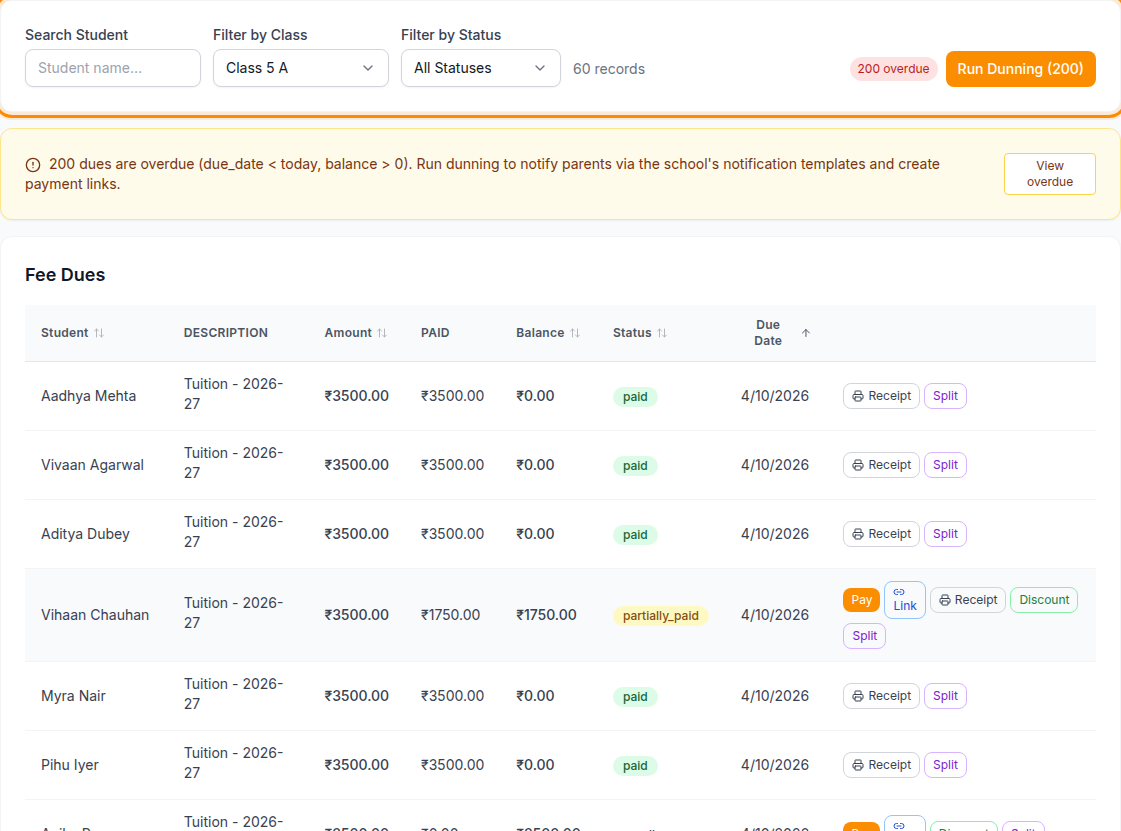
Each row shows the Student, the Description (for example "Tuition - 2026-27"), the Amount, what has been Paid, the Balance, the Status and the Due Date. Click a column heading marked with arrows to sort by it.
Step 2 — Find the dues you need
Narrow the list with the three filters above it:
| Filter | Use it to |
|---|---|
| Search Student | Find one student by name |
| Filter by Class | See one class and section |
| Filter by Status | Show Pending, Partially Paid, Paid or Overdue dues |
The count beside the filters — for example 60 records — tells you how many rows match.
Step 3 — Record a cash or cheque payment
When a parent pays at the office, find the student's due and click Pay. The Record Manual Payment window opens.
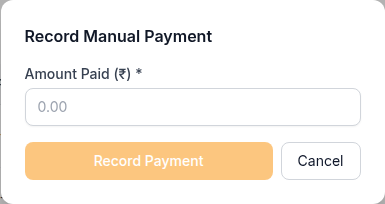
Enter the Amount Paid (₹) and click Record Payment. You'll see Payment
recorded!, and the row updates straight away: the balance drops, and the status becomes
partially_paid or paid.
A payment can't take a due below zero. If you enter more than the balance, only the balance is recorded — so check the amount before saving.
Pay only appears on dues that aren't fully paid.
Step 4 — Send an online payment link
For a parent who will pay from home, click Link on the due. The Online Payment Link window opens with the student's name and the fee.
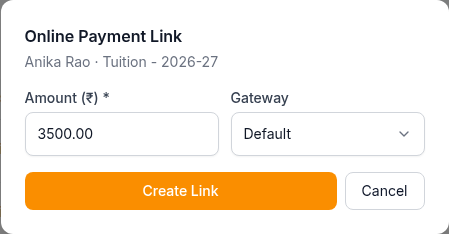
Amount (₹) is filled in with the balance; change it if the parent is paying part of it. Leave Gateway on Default, or pick one of your school's connected gateways. Click Create Link.
The link appears in a box. From there you can:
- Click Copy and share it with the parent yourself — on WhatsApp, for example.
- Click Send via SMS & Email to email it to the parent linked to the student.
Despite the button's name, the link currently goes by email only, to the email address on the parent's account. SMS delivery is not available yet. If the parent has no email on record, copy the link and share it yourself.
When the parent pays, the payment is recorded against the due automatically.
Step 5 — Print a receipt
Once anything has been paid on a due, a Receipt button appears on its row. Click it to open the Fee Receipt: receipt number, student, class, description, the amount paid so far, the total and the balance. Click Print Receipt to print it or save it as a PDF.
Each click on Receipt also saves a receipt to the school's records. Print from the window that opens rather than clicking Receipt again, so the same payment isn't recorded twice.
Step 6 — Remind parents of overdue fees
A due becomes overdue when its due date has passed and a balance is still owed. When there are any, an amber banner above the list says how many, and View overdue filters the list to them.

Run Dunning sends a reminder to the parent of each student with overdue fees — one reminder per student, however many dues they have — with a payment link for the amount where a gateway is connected. Reminders reach parents in the app, as a push notification and by email. SMS and WhatsApp are not available yet.
The same reminders also go out automatically every night, so you rarely need the button. Before you use it, know that:
- Each run covers the 100 oldest overdue dues.
- Running it again reminds the same parents again. Use it once, not repeatedly.
When it finishes you'll see a summary — for example Dunning complete: 12 reminders, 12 links (40 overdue).
Splitting a due into instalments
To let a family pay in parts, click Split on the due. In Create Installment Plan, set the Count, the Interval (days) between instalments and, optionally, a Start Date. The due is divided into instalments, each with its own due date, and the button then reads Installments.
Concessions and discounts
A concession that permanently changes what a student owes — a sibling discount, scholarship or staff-child concession — is on our roadmap. The Discount button on a due does not yet change the amount owed, so don't rely on it to reduce a balance.
Common problems
"No linked parent user to notify." The student has no parent account linked, so a link can't be sent. Link the parent under Parent Linking, or copy the link and share it yourself.
"Failed to create payment link." Usually no gateway is connected, or the gateway rejected the request. Check Payment Gateways.
The Fee Dues list is empty. No dues have been raised yet. Create the fee structure on the Fee Structures tab and generate dues for the class.
Receipt isn't on the row. Nothing has been paid on that due yet. Record the payment first.
Features covered
Fee Management
Define fee categories and per-class amounts and due dates, then generate the due for every student in a class in one action. Record a cash or cheque payment taken at the office against a student's due, updating the balance immediately.
Online Payments
Parents pay fees online by UPI, card or net banking straight from the mobile app, and every transaction — online or manually recorded — appears in one running history with amount, date and status.
Payment Links & Reminders
Generate a one-tap payment link for a specific fee due and send it to a parent, or send a reminder about an unpaid due. Overdue dues can also be chased automatically every night.
Fee Receipts
Every payment taken at the office produces a numbered receipt showing the fee heads paid, any discount given and the balance left, ready to print or save as a PDF for the parent.
Automatic Fee Reminders
Overdue dues are chased on their own: every night the system finds fees past their due date with a balance still owing and sends each parent a reminder with a payment link for that exact amount. Staff can also see the overdue list and run the whole round manually.
Want us to set this up with you?
Data migration and staff training are included on every plan.
Talk to us